Microsoft Edge
Viewing
History
1. Open the
Microsoft Edge browser.
2. Press Ctrl + H to open the history menu.
- OR -
1. Open the
Microsoft Edge browser.

2. In the upper
right-hand corner, select the Hub button.

3. Select the History to view your browser history.
Delete
History
1. Open the
Microsoft Edge browser.
2. Press Ctrl + H to open the history menu.
3. Select clear all history.
4. Choose the
appropriate boxes for types of
data you'd like to clear.
5. Select Clear.
- OR -
1. Open the
Microsoft Edge browser.
2. In the upper
right-hand corner, select the Hub button.
3. Select the History to view your browser history.
4. Select clear all history.
5. Choose the
appropriate boxes for types of
data you'd like to clear.
6. Select Clear.
Microsoft Internet Explorer
Viewing
History in Internet Explorer 7 and above
1. Open
the Microsoft Internet Explorer browser.

2. Click Tools in the
upper right-hand corner.
3. Select Internet
Options from the drop-down menu.
4. On the General tab,
in the Browsing history section, click the Settings button.
5. On the Temporary
Internet Files tab, click the View Files button.
Viewing
History in Internet Explorer 6.x
1. Open
the Microsoft Internet Explorer browser.
2. In the toolbar at
the top of the screen, click the Tools menu.
3. In the drop-down
menu, select Internet Options.
4. Click
the Settings button.
5. Click
the View Files button.
Delete
History Using Shortcut Keys
1. Open
the Microsoft Internet Explorer browser.
2. Press Ctrl
+ Shift + Del to open the Delete Browsing History window.
3. Check
the boxes of the data you'd like to clear.
4. Click Delete.
Delete
History in Internet Explorer 7 and Above
1. Open
the Microsoft Internet Explorer browser.

2. Click Tools in the
upper right-hand corner.
3. Select Internet
Options from the drop-down menu.
4. On the General tab,
in the Browsing history section, click the Delete button.
5. Check
the boxes of the data you'd like to clear.
6. Click Delete.
Delete
History in Internet Explorer 6 and Above
1. Open
the Microsoft Internet Explorer browser.
2. In the toolbar at
the top of the screen, click the Tools menu.
3. In the
drop-down menu, select Internet Options.
4. Click
the Clear Browser History button.
5. Click
the Delete Files button.
6. Click OK.
Delete
History in Internet Explorer 4.x
1. Open
the Microsoft Internet Explorer browser.
2. Click
the History icon.
3. Click Clear
Internet History.
4. Click OK.
Delete
History in Internet Explorer 3.02 and Lower
1. Open
the Microsoft Internet Explorer browser.
2. In the
toolbar, click the View menu.
3. Click Options.
4. Open
the Advanced tab.
5. Click
the Settings tab.
6. Click
the Empty Folder button.
Mozilla Firefox
Viewing
History
If you do not have a homepage set...
1. Open the
Firefox browser.
2. Click the History button at the bottom of the browser
window.
Or if you do have a homepage set...
1. Open the
Firefox browser.
2. Press Ctrl + H to open the history bar on the
left-hand side of the screen, or Ctrl
+ Shift + H to open the
history window.

You can also click the Hamburger Menu icon in the top right-hand corner of the screen and select History in the menu.
Deleting
History
1. Open the
Firefox browser.
2. Press Ctrl + Shift + Del to open the Clear Recent History window.
3. Select an
option for Time range to clear.
4. Click the
arrow for Details and select the options to have
cleared.
5. Click the Clear Now button.
- OR -
1. Open the
Firefox browser.

2. Click Menu in the top right-hand corner of the
screen.
3. Click the History button.
4. Click the Clear recent history option.
5. Select an
option for Time range to clear.
6. Click the
arrow for Details and select the options to have
cleared.
7. Click the Clear Now button.
Google Chrome
Viewing
History
1. Open the
Chrome browser.
2. Press Ctrl + H to open the left-side history bar.
- OR -

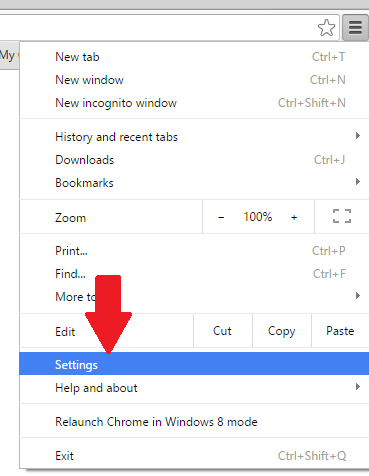
1. Click the Wrench or Menu icon, which is located near the
top-right side of the browser window.
2. Click History.
Deleting
History
1. Open the
Chrome browser.
2. Press Ctrl + Shift + Del to open the Clear Browsing Data
Window.
3. Click the Clear browsing data button.
- OR -
1. Click the Wrench or Menu icon, which is located near the
top-right side of the browser window.

2. Move your
mouse over more tools and select Clear browsing data...
3. Select how
far back in your history you want to delete. You can choose from the past hour, the past day, the past week, the last four weeks, and the beginning of time.
4. Select the
types of history you would like to delete by checking
or unchecking boxes on this
list:
5. Click the Clear browsing data button to delete the selected history
for the chosen period.

Google Chrome on Android phone or tablet
Viewing
and Deleting History

1. Open the
Chrome browser on your Android phone or tablet.
2. Tap the Menu icon in the top right corner of the
screen next to the address bar.
3. In the
drop-down menu, tap History.
4. Tap CLEAR BROWSING DATA... at the bottom of the screen.
5. Select the
appropriate boxes.
6. Tap the Clear button.
Google Chrome on iPhone
1. Open Google
Chrome on your iPhone or iPad.
2. Click in the
Google search or URL bar at the top of the screen.
3. A the bottom
click View search history
4. Click the CLEAR ALL at the top right of the screen.
5. If you're
sure click CLEAR ON-DEVICE
HISTORY.

Opera
Viewing
History
1. Open the
Opera Internet browser.
2. Press Ctrl + H to open the History tab.
- OR -
1. Open the
Opera browser.

2. Click the in the upper left-hand corner of the
window.
3. From the
drop-down menu, select History.
Deleting
History
1. Open the
Opera browser.

2. Click the in the upper left-hand corner of the
window.
3. From the
drop-down menu, select History.
4. Click Clear browsing data...
5. Next to Obliterate the following items
from: click the down arrow
and select the beginning of
time.
6. Check the
appropriate boxes then click Clear
browsing data.

Safari
Viewing
History
1. Open the
Safari browser.
2. In the menu
bar at the top of the browser window, open the History menu.
3. In the
History menu, you will see the last 10 web pages you have visited listed. You
should also see a menu option for each of the last 6 or 7 days, listing the web
pages visited each of those days. By default, history is only kept for the last
7 days.
Deleting
History
Depending on the version of Safari on your computer, follow one
of the following two sets of instructions.
1. Open the
Safari browser.
2. In the menu
bar at the top of the browser window, open the Safari menu.
3. Select Clear History and Website Data in the Safari menu.
4. In the Clear drop-down list, select an option for
how far back you want to delete history for: the last hour, today, today and
yesterday, or all history.
5. Click the Clear History button to clear browser history, as
well as browser cookies and data.
- OR -

1. Click on the Gear icon, which is located near the
top-right side of the browser window.
2. Click the Reset Safari... link, which opens the window shown
below. Uncheck any boxes whose content you do not want to
delete and click the Reset button.

Safari on iPhone and iPad
Viewing
and Deleting History
Note: The
following instructions only work for iPhones and iPads with iOS 5.0 or later.
1. Open the
Safari browser.
2. Scroll up
until you see the address bar at the top of the screen and a toolbar on the
bottom.
3. On the
toolbar at the bottom, click
the fourth icon from the left that looks like a book.
4. Click History.
5. Click Clear in the lower right-hand side of the
screen.

Netscape
Viewing
History
1. Open the
Netscape browser.
2. From the
toolbar, click Edit, Preferences, History.
3. Locate the folder in which Netscape is storing your
files.
4. Double click
this folder within Explorer to view your browser history..
Deleting
History
1. Open the
Netscape browser.
2. From the
toolbar, click Edit, Preferences, History.
3. Click the Clear History button.